Showing posts with label Digimaster 3 Digimaster III. Show all posts

Friday, January 28, 2022

Digimaster 3 do mileage correction for Change Hyundai Santa FE 2018

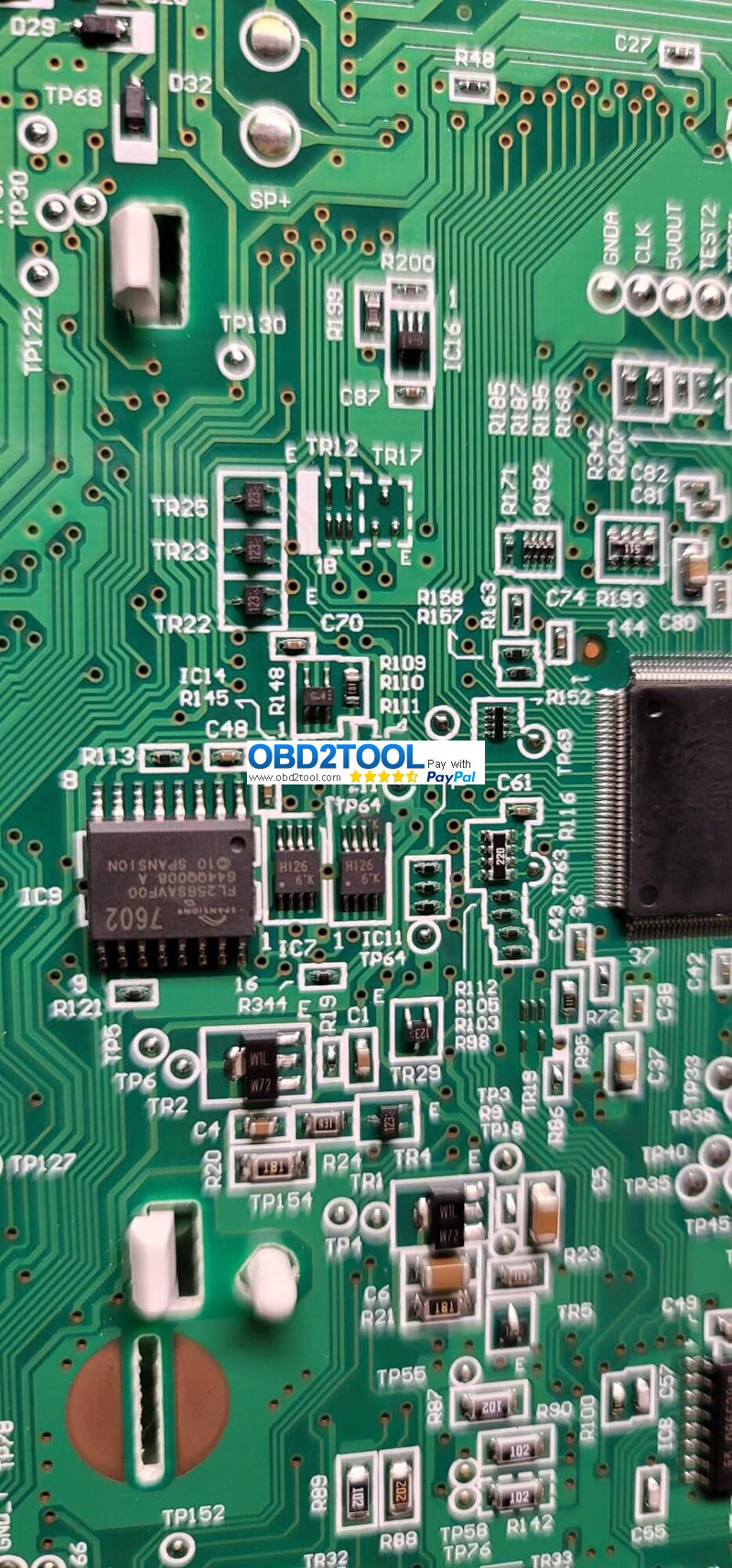
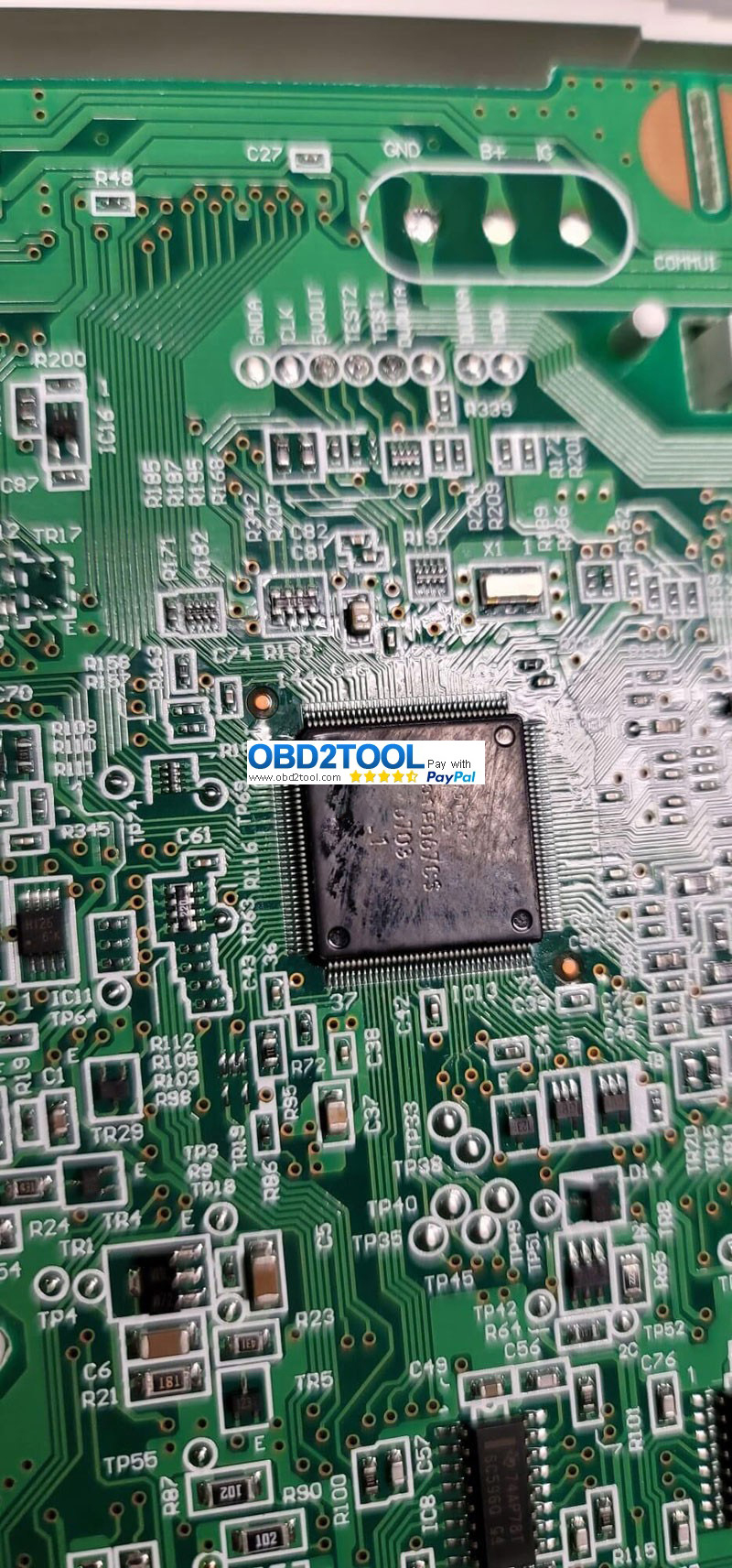
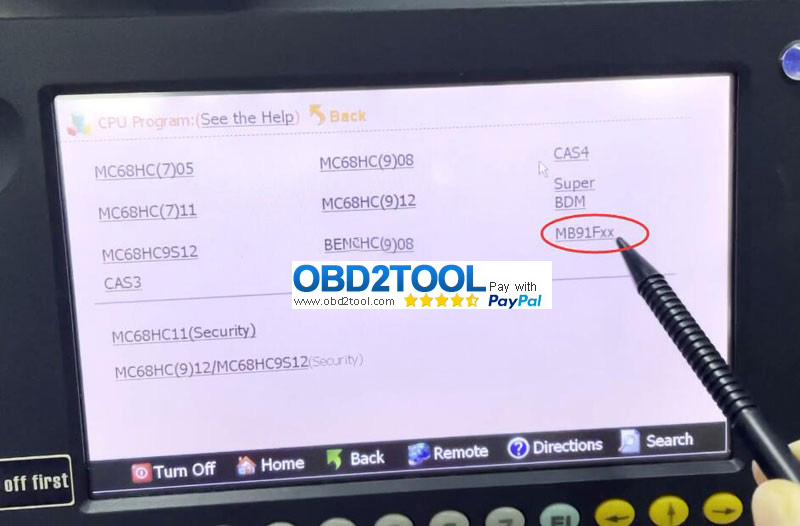
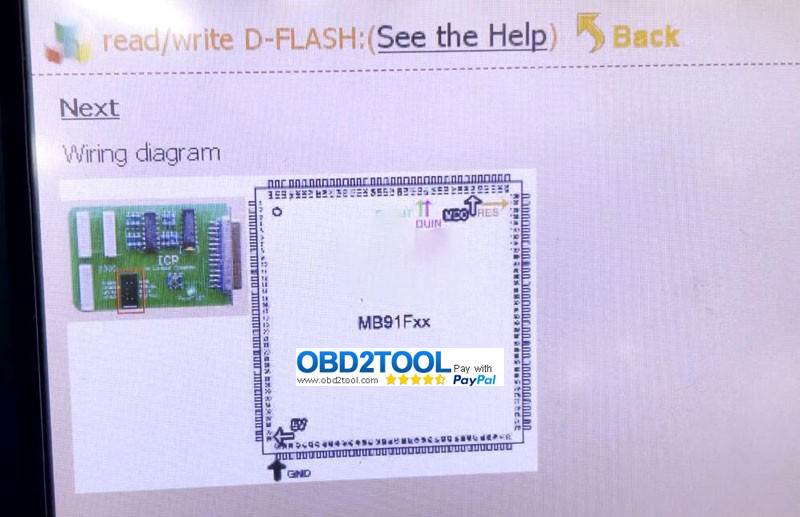
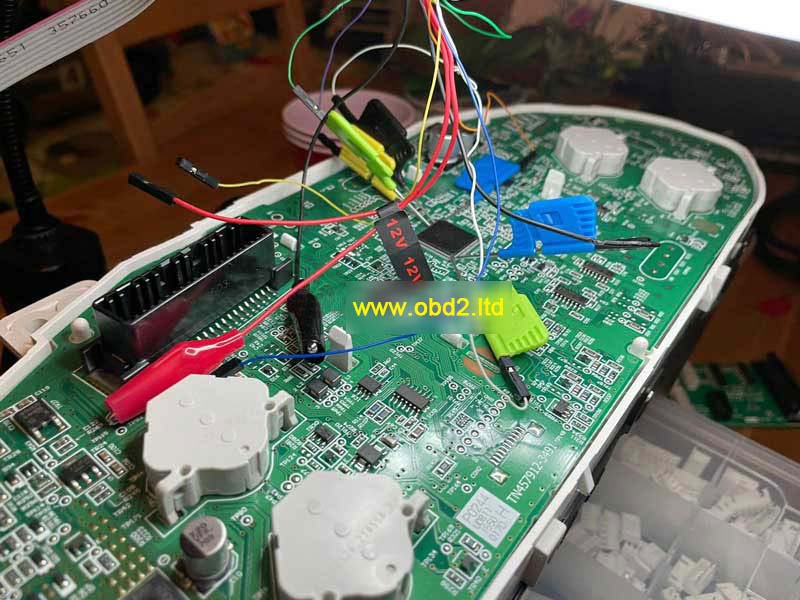
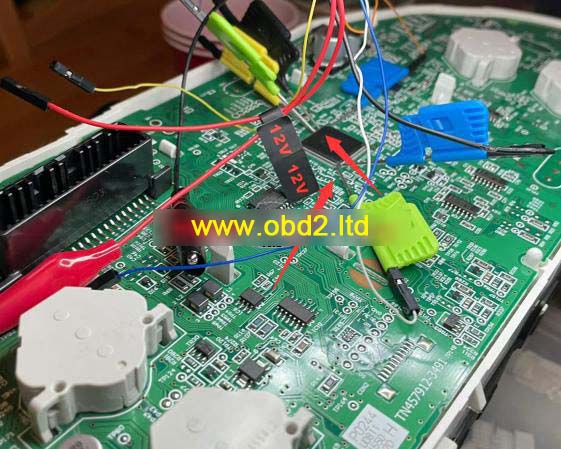
I’m currently working on a Hyundai Santa FE 2018 but Yanhua Digimaster 3 does not give connection instructions. Chip type MB91F067BS and another chip is HI26. Possible to correct odometer with D3? May I know where should I solder?


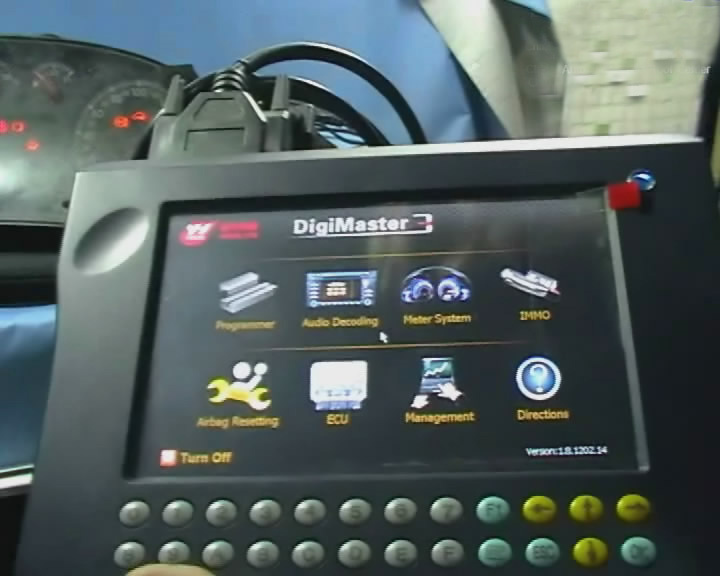
Digimaster III is capable of changing mileage on this model. But it doesn’t have wiring diagram. Need to find yourself wiring connections.
Then follow this path to correct mileage.
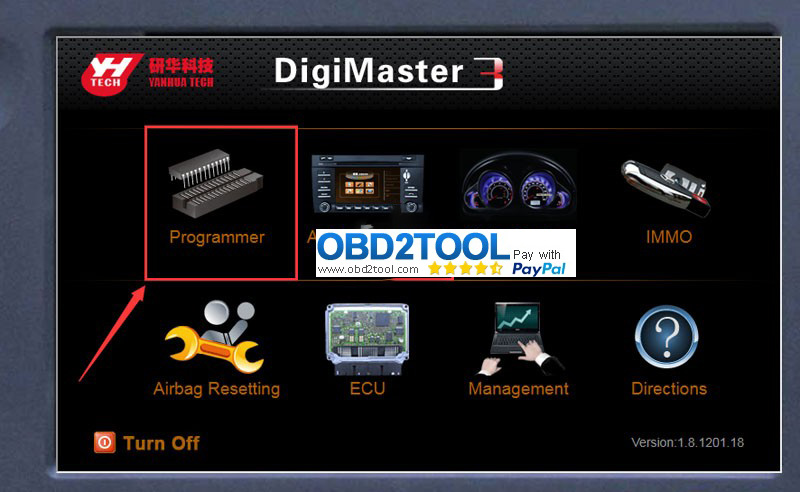
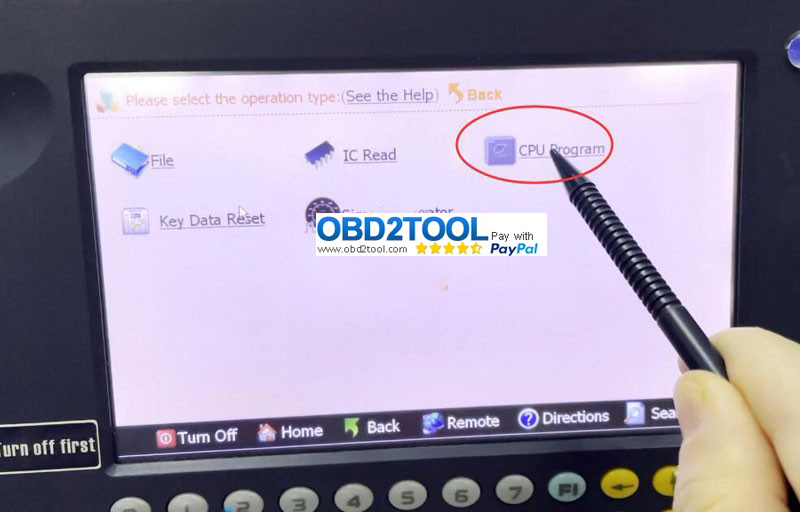
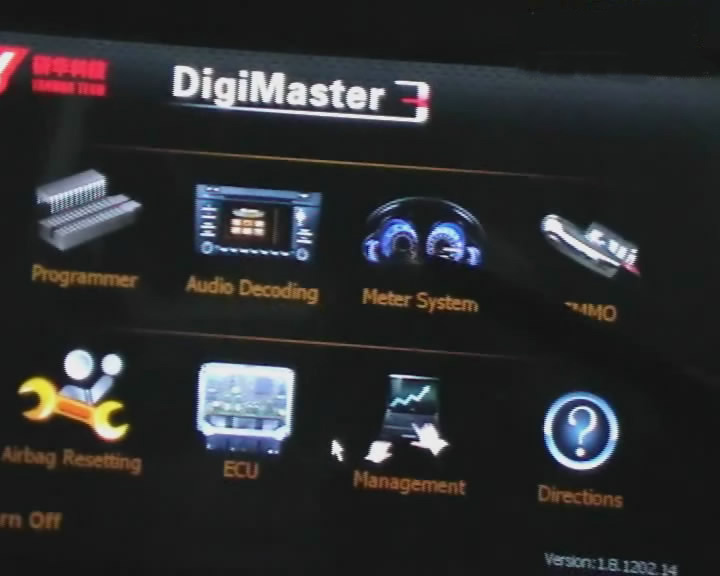
Programmer- CPU Program- MB91Fxx


Save data, send data, original mileage and mileage you desired directly to Yanhua technician.
They will modify data for you.

Any question you have please contact us:
https://www.obd2tool.com/goods-1750-Digimaster+3+Digimaster+III+Original+Odometer+Correction+Master+Update+Online.html

Saturday, January 22, 2022

Solved! Yanhua Digimaster 3 “Not Find Device” Error

An error occurred while a customer was using the Yanhua Digimaster 3. Our technician provided the appropriate solution. If you have the same problem too, hope it helps.

Customer problem:

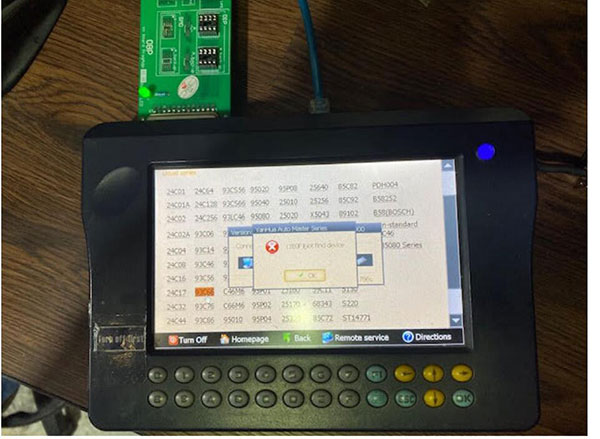
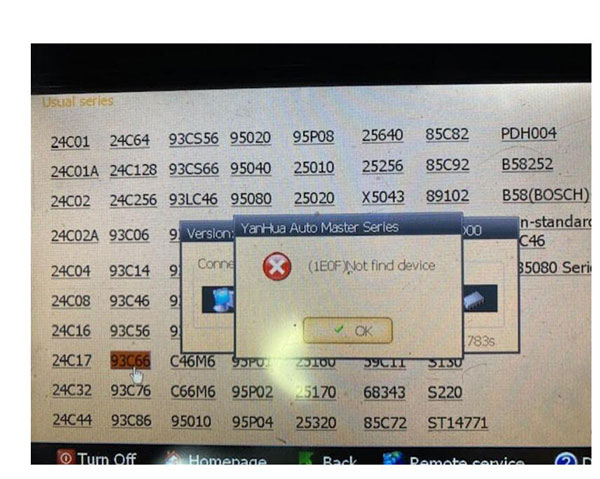
When I tried to correct my car’s odometer with the Digimaster 3, the message Device not found was displayed on the screen. I couldn’t correct the kilometers.

Solved-Yanhua-Digimaster-3-“Not-Find-Device”-Error-1
Solved-Yanhua-Digimaster-3-“Not-Find-Device”-Error-2

Obd2tool.com engineer solution:

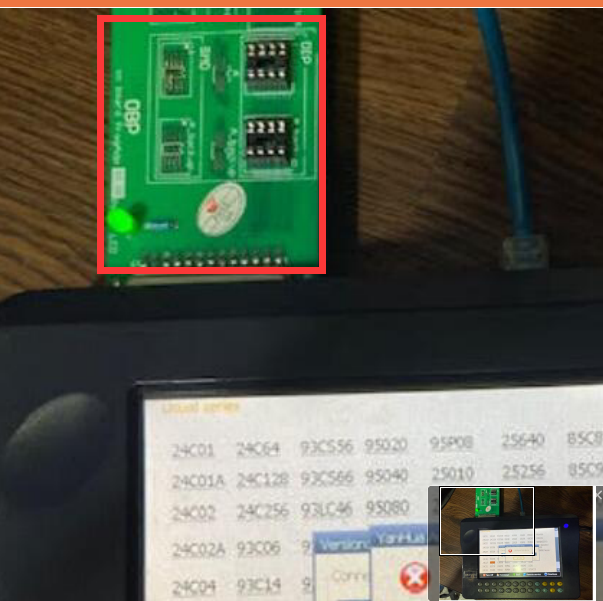
You did not weld the odometer’s chip to the OBP adapter, the board you connected to Digimaster 3 was blank, so the device cannot be found and no information can be read. Please remove the chip from the odometer and sell it to the board, then try again.

Solved-Yanhua-Digimaster-3-“Not-Find-Device”-Error-3


Thursday, January 20, 2022

How to Solve Yanhua Digimaster3 Occurs “(1E0F) Not find device” Error

Question

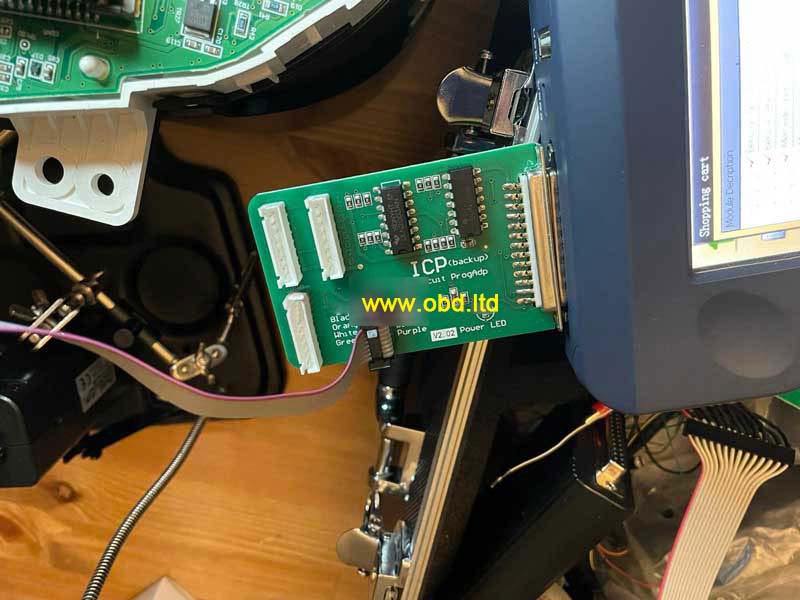
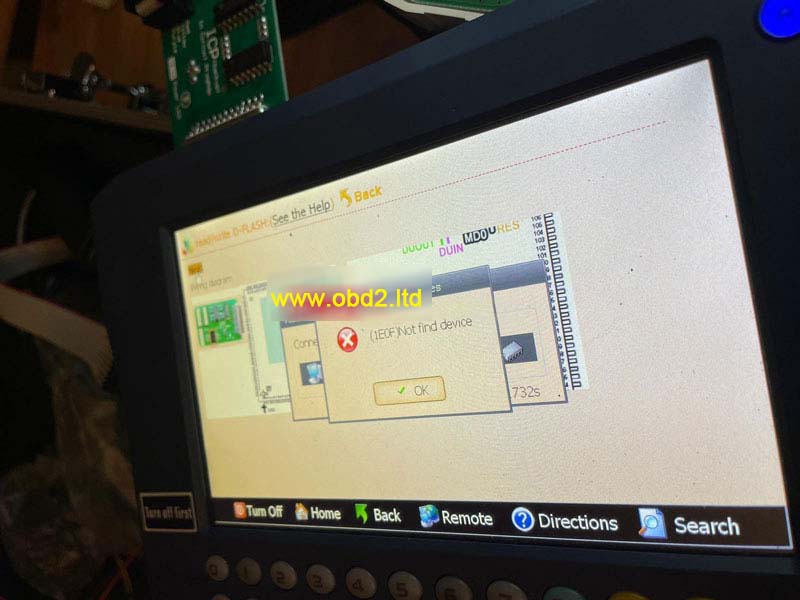
I tried to connect Yanhua Digimaster 3, but the ICP adapter is not responding. The LED light won’t light up and it gives me an error: “(1E0F) Not find device”.

This is my connection, what’s the problem, please help.

How-to-Solve-Yanhua-Digimaster3-Occurs-“(1E0F)-Not-find-device”-Error-1
How-to-Solve-Yanhua-Digimaster3-Occurs-“(1E0F)-Not-find-device”-Error-2
How-to-Solve-Yanhua-Digimaster3-Occurs-“(1E0F)-Not-find-device”-Error-3

Engineer Replies
The reason why Digimaster3 failed to connect is because of the touching pin on board. This kind of pin is in bad contact. It is suggested to use wiring for connection.

In case you have same problem, simply check the connection carefully. Make sure your wiring is connected to correct position.

How-to-Solve-Yanhua-Digimaster3-Occurs-“(1E0F)-Not-find-device”-Error-4

Digimaster III poor contact issue was solved.

Wednesday, January 12, 2022

How to operate Digimaster 3

How to operate Digimaster 3

Step 1. digimaster 3 function menu

How-to-operate-Digimaster-3-1

Step 2. digimaster 3 function

How-to-operate-Digimaster-3-2

Step 3. digimaster 3 basic info

How-to-operate-Digimaster-3-3

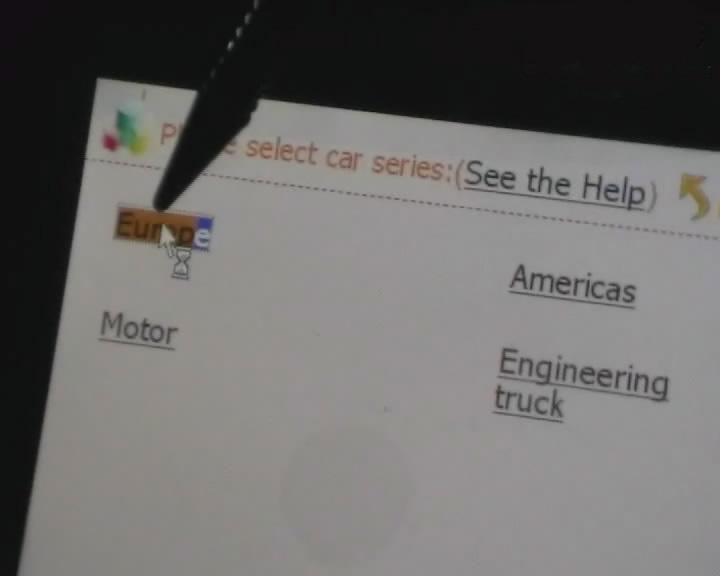
Step 4. digimaster 3 select car series

How-to-operate-Digimaster-3-4

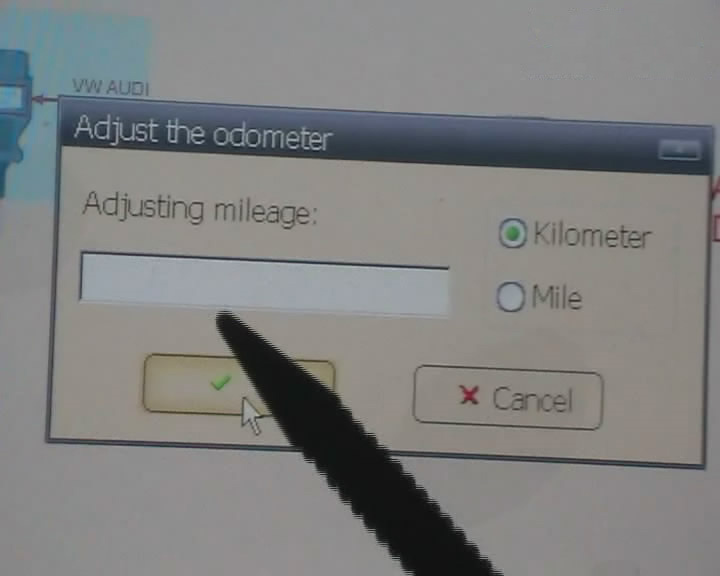
Step 5. digimaster 3 adjust odometer

How-to-operate-Digimaster-3-5

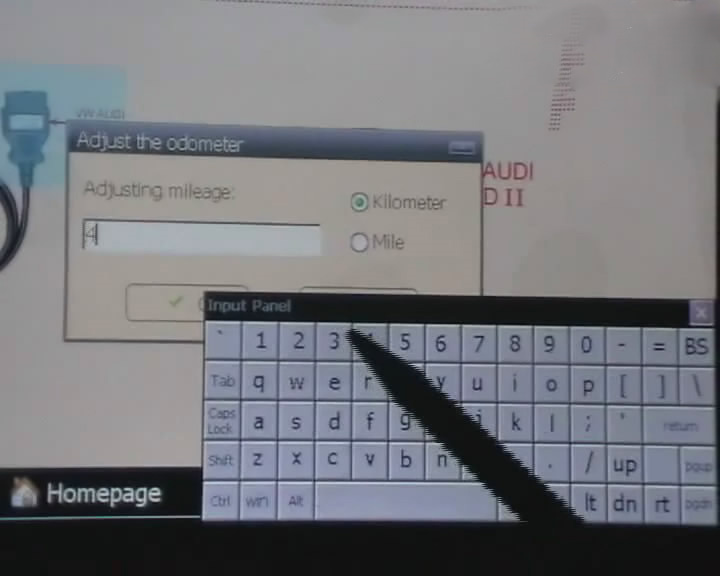
Step 6. digimaster 3 adjust odometer

How-to-operate-Digimaster-3-6

Step 7. digimaster 3 adjust gls

How-to-operate-Digimaster-3-7

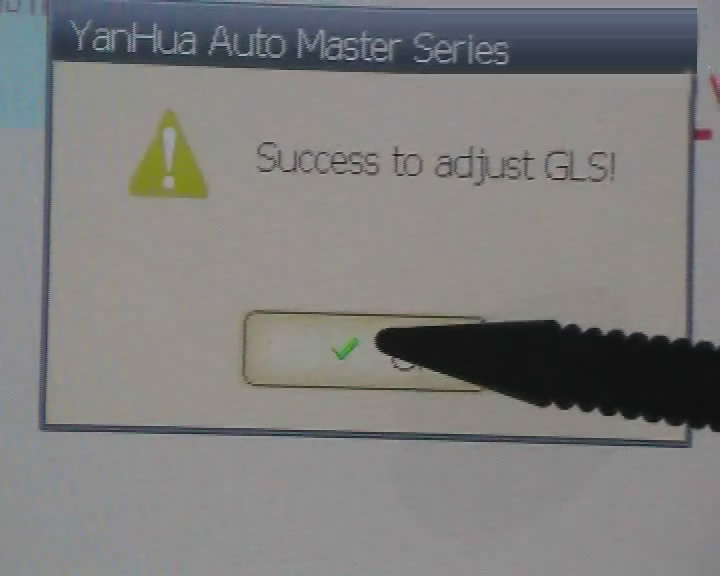
Step 8. digimaster 3 success adjust gls

How-to-operate-Digimaster-3-8

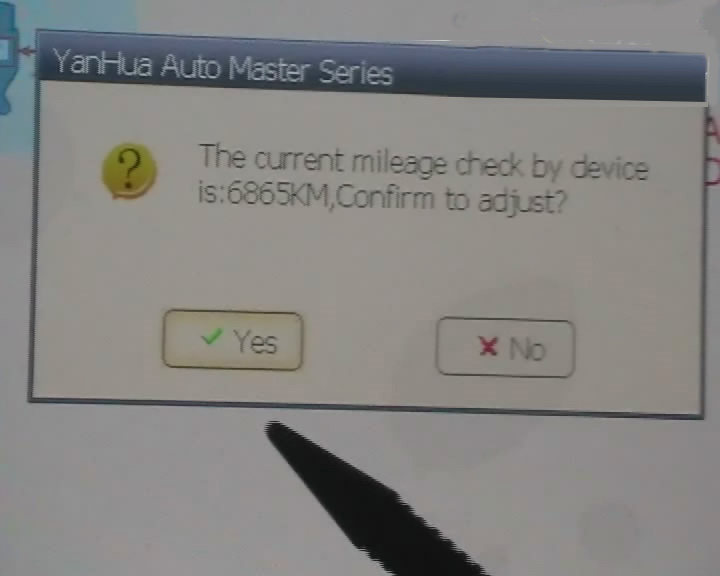
Step 9.  digimaster 3 adjust mileage

How-to-operate-Digimaster-3-9

Digimaster 3 Update Kernel
After update EBOOT, it is necessary to update kernel.
Tips: Before update EBOOT, please install D3 TOOL first.
Step 1: Press button number 8 and button OK at the same time, and turn the power on. When you see “Press OK to confirm and continue update Firmware” press OK, then it enter the procedure of updating.
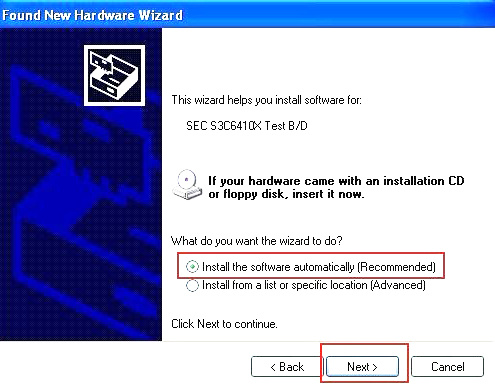
Step 2: Connect D3 with a computer through Mini USB (purple color), you can see a tip “Found New Hardware wizard”.As the image shown below.

How-to-operate-Digimaster-3-10

Step 3: choose “install the software automatically”, click “click”
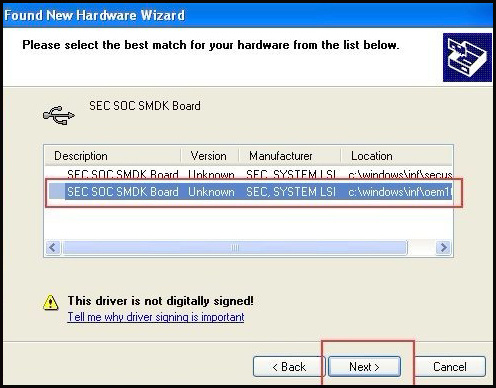
Step 4:  If DIGIMASTER 3 have been installed already, choose the second “SEC SOC SMDK Board” in dialog box as shown below, and click “Next” to complete driver installation.

How-to-operate-Digimaster-3-11

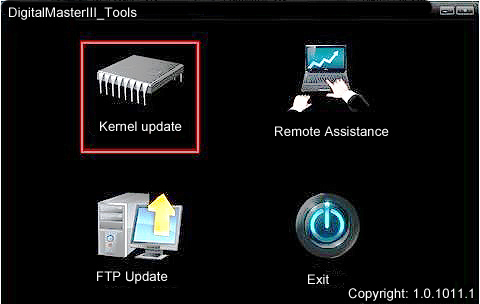
Step 5:Double-click Digimaster 3 PC Tools and choose “Kernel Update”.

How-to-operate-Digimaster-3-12
How-to-operate-Digimaster-3-13

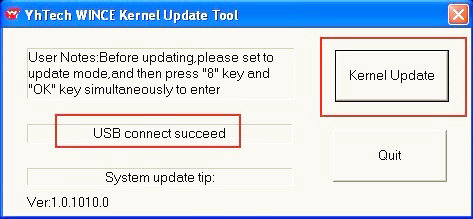
Step 6: Make sure the purple Mini USB is connected, then you can see ” USB connect succeed”

How-to-operate-Digimaster-3-14

Step 7: click “Kernel Update” and choose “EBOOT_20110427.bin” then click “OK” to start EBOOT program update.

Step 8: After 10sec. the DIGIMASTER 3 screen appears a twinkling red ‘YH’ logo which means EBOOT update is complete.
After update EBOOT successfully, please turn the power off and choose a appropriate way to update the kernel.
TIPS: Please uninstall the anti-virus software and firewall temporarily in order to run the software normally.

How-to-operate-Digimaster-3-15

After Update EBOOT, Still Not Work?
Second way, please operate by following the next tips:
1.Remove SD card from D3 to cardreader,and connect to PC. After successful connection, click “Removable Disk(E:)” as showed in the picture.
2. Delete the old file “YHTech” which is inSD card.
3. Copy the “YHTech” files from CD, and save it in SD card.
4. Please insert SDcard into D3 after successfully copy and paste. Then connect to network andturn on D3, click “OK” for downloading when appear remark of “Pleaseconnect network download hypervisors!” in the interface. It can befunctioned after successful download.”

Note:

1) When you use digimaster3 ck1200, if the following error appears, this is IP restriction,
Please tell us, we will help you remove restriction according to IP.

How-to-operate-Digimaster-3-17

2) The following digimaster3 BMW adapter has not been concluded:

How-to-operate-Digimaster-3-18

Now it is replaced by this one:

3) Digimaster 3 English version doesn’t have TMS370 Programmer adpater, only Chinese version has.

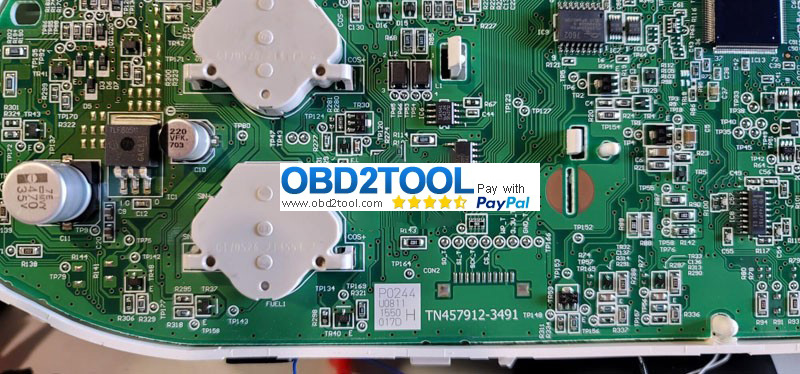
How-to-operate-Digimaster-3-19

Monday, August 30, 2021

Digimaster 3 VS OBDSTAR Odomaster VS GODIAG GD801

 Cluster calibration tools comparison: Yanhua Digimaster 3 or OBDSTAR odomaster or godiag gd801 or obdprog m500 or Digiprog III, which one is the best one out of these? and what’s the best place to buy it from?

Yanhua Digimaster 3 Pros:

A comprehensive Cluster Calibration tool meeting the needs of those who also require some other advanced options including key programming and airbag reset. It can perform cluster calibration by OBD, by disassembling the meter or by disassembling the chip. Digimaster 3 has a wide vehicle coverage.

OBDSTAR Odo Master Pros:

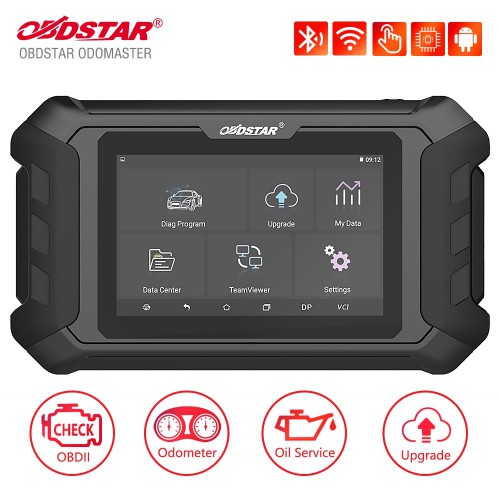
OBDSTAR ODO Master is an OBD cluster calibration tablet. It is the upgraded version of OBDSTAR X300M with wider and newer vehicle coverage. It help calibrate the cluster via OBD without dismantling the meter or the chip. It comes with help and operation guide, the operation log is allowed to upload to the OBDSTAR server automatically without manually uploading.

Digiprog III Pros:

Digiprog III is the most cost-effective odometer master programmer suitable for people who needs the function but do not want to pay too much.

Digiprog III Cluster Calibration tool comes with the touch screen, it can correct the mileage by OBD, by disassembling the meter or by disassembling the chip. It has a wide vehicle coverage.

OBDSTAR X300M Pros:

OBDSTAR X300M is a professional cluster calibrate tool, adjust mileage via OBD without removing chip, it has simple operation and greatly reduce the risk of instrument damage due to disassembly. It is free update lifetime.

GODIAG GD801 Pros:

godiag gd801 is also a professional cluster calibration tool via OBD without disassembling the meter and chip. Besides, it has more options such as oil service reset, OBDII scan, help etc. it can be connected to the Internet, and works with newer vehicle models. It allows you to upload the log to the server without manual feedback especial when you have any problem.
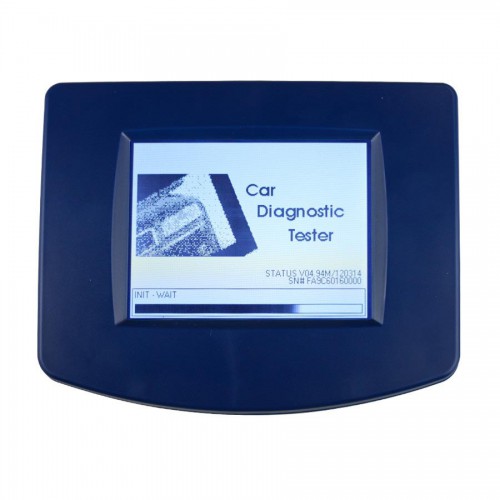
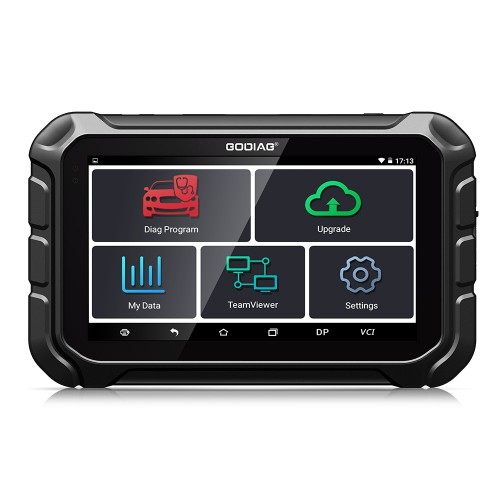
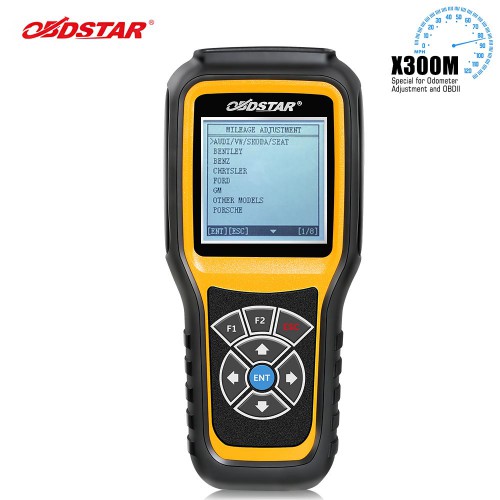
If you find OBDSTAR X300M can’t support the car model or not works with the newer cars, and you think odomaster is much more expensive, then go to buy one GODIAG GD801.

obdprog m500 Pros and cons:

obdstar is the maker of the software and producer of the tool, so obdprog m500

get their support from obdstar.

obdprog m500 update is later than obdstar odomaster which keeps up the newest update, and odomaster is available with European version (more European cars), US version (target at American version).

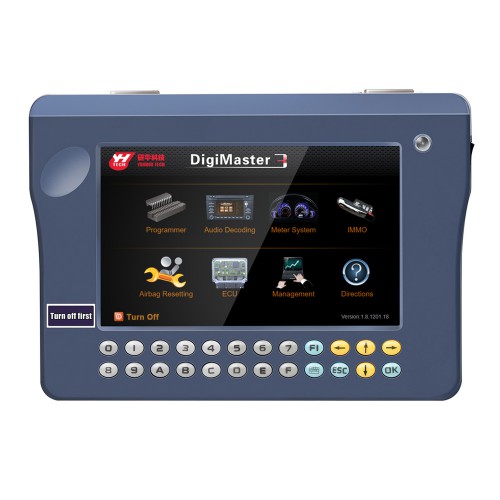
ProductYanhuaDigimaster 3OBDSTAR ODO MasterOBDSTAR X300MDigiprog IIIGODIAG GD801
Image YanhuaDigimaster 3OBDSTAR ODO MasterOBDSTAR X300MDigiprog IIIGODIAG GD801
Price$938$749 (EU /US version: $699)$219$139$599
LanguageEnglishEnglishEnglish English, Deutsch, Espanol, French, Portuguese, Italiano, Turkish, NederlandsEnglish, Italian, Russian, German, Spanish, Polish, Portuguese, French
UpdateOnline update, no tokens limited, Item NO. SP78 with extra 200 tokens to update free. Item NO. SP78-B with 1080 tokens.1 year free update, $300USD/year when overdue.For newer cars, please choose ODO Master.Need to return main unit for upgrading.One-Click Upgrade. Free Update Online for 1 Year, after expiration, it will cost $149/year.
Odometer adjustment wayBy OBD2, or dismantling the meter, dismantling the chip.By OBD2By OBD2By OBD2, or dismantling the meter, dismantling the chip.By OBD2
Main functionsCluster calibration, audio decoding, airbag reset, engine ECU resetting, IMMO, PIN code reading, BMW&Benz key programming.Cluster calibration, OBDII scan, oil service reset, read and clear trouble codesCluster calibration / OBDII scan / MQBCluster calibration, Assyst processing, EEPROM programmer, read/erase fault memory, integrated PC communication.Read OdometerWrite Odometer

Read Flash

Write

Flash

Read Eeprom

Write Eeprom

Vehicle Coverage Digimaster3 Vehicle Coverage


OBDSTAR ODOMaster Vehicle Coverage


OBDSTAR X300M Vehicle Coverage


Digiprog III Vehicle Coverage


GODIAG GD801 Vehicle Coverage